

Why Create a Donor Leaderboard in WordPress?
A donor leaderboard builds social proof and encourages people to give by showing real-time community support. Seeing others donate makes new visitors feel more comfortable and motivated to join your mission. In fact, research shows that 74% of donors can be motivated to give more or donate outside their usual schedule when they feel compelled by a strong reason. Seeing real people give — especially when their generosity is acknowledged — can be that extra push. Plus, highlighting top donors on nonprofit websites doesn’t just celebrate their generosity. It also builds momentum for fundraising campaigns. You can explore more insights in our nonprofit research guide. Here are some key benefits of adding a donor leaderboard to your WordPress site:| Benefit | Why It Matters |
|---|---|
| Strengthens community engagement | Turns individual donations into a shared experience, helping supporters feel part of something bigger. |
| Recognizes top supporters | Publicly thanking donors on your nonprofit site strengthens their connection to your cause and makes them feel valued. |
| Creates friendly competition | Seeing others on the leaderboard can inspire donors to give more or encourage others to donate. |
| Builds transparency and trust | Showing donor activity reassures new supporters that others believe in your mission. |
| Encourages recurring donations | Donors may be motivated to set up monthly gifts to maintain or improve their position. |
- Step 1: Install and Activate the Charitable Plugin
- Step 2: Create a Campaign with a Donor Leaderboard
- Step 3: Embed Your Campaign on Your Site
- Alternative: Show a Donor Leaderboard Across All Campaigns
- Bonus Tip: Create a Donor Portal in WordPress
- FAQs About Creating a Donor Leaderboard in WordPress
- Next Steps to Grow Your Nonprofit WordPress Website
Step 1: Install and Activate the Charitable Plugin
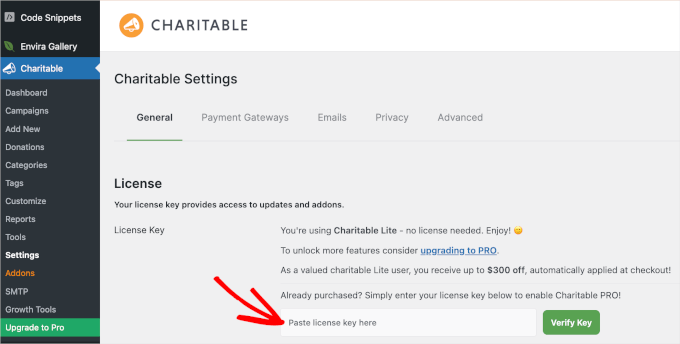
WP Charitable is the best WordPress donation and fundraising plugin. It lets you set up campaigns and show donor information professionally without charging platform fees. We use Charitable to manage donations on the Balkhi Foundation website. To read more about our experience, see our complete Charitable review. Charitable makes it easy to set up campaigns, track donations, and display donor information in a professional way. The Donor Leaderboard feature is included in Charitable Pro and becomes available automatically once you activate the plugin. First, you’ll need to sign up for a Charitable account. On the Charitable website, click the ‘Get Charitable Now’ button, pick a plan, and follow the on-screen instructions to complete checkout.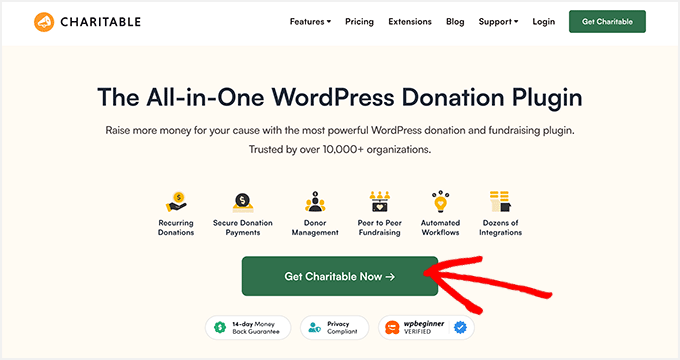
💡 Note: If you want to try Charitable before purchasing, there’s a free Charitable version available in the WordPress plugin directory. However, the donor leaderboard feature is only included in the Charitable Pro version.
Upon signup, you’ll have your own Charitable account area, where you can find your plugin’s zip file and license key.
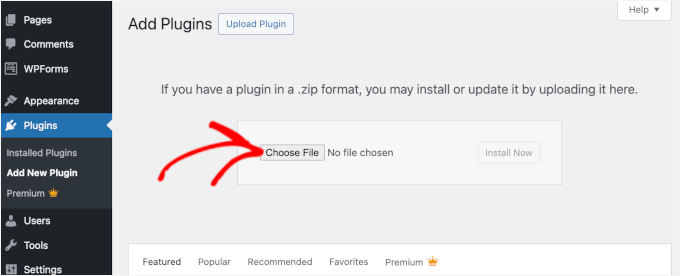
Now you can install and activate the Charitable plugin. Go to Plugins » Add Plugin in the WordPress dashboard.

Step 2: Create a Campaign with a Donor Leaderboard
Now that Charitable Pro is installed and activated, you can create your first fundraising campaign with a donor leaderboard. This is where you’ll set up the campaign details, whether you want to create a peer-to-peer fundraising or crowdfunding campaign, and add the leaderboard feature. To get started, go to Charitable » Campaigns in your WordPress dashboard and click the ‘Create Campaign’ button.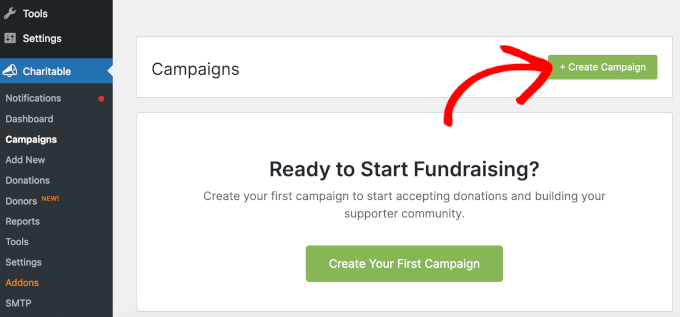
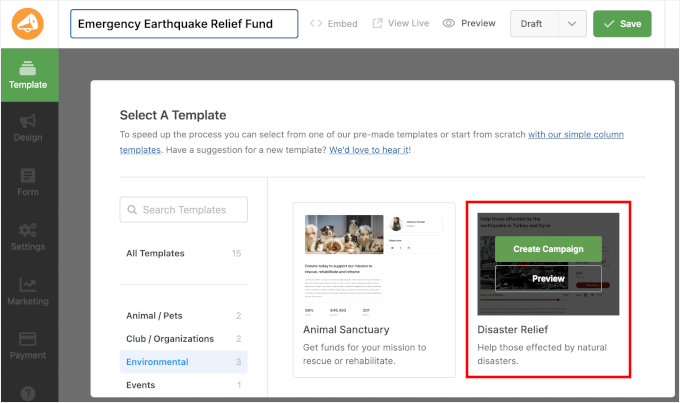
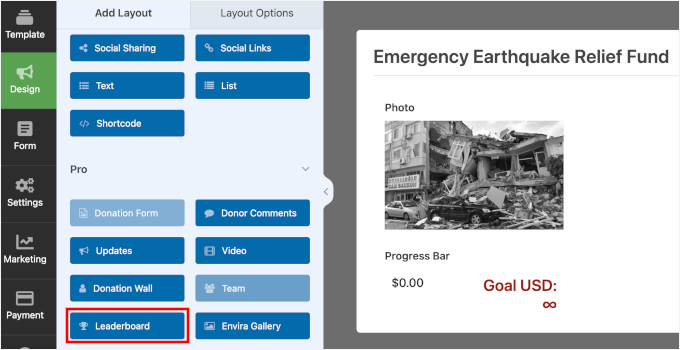
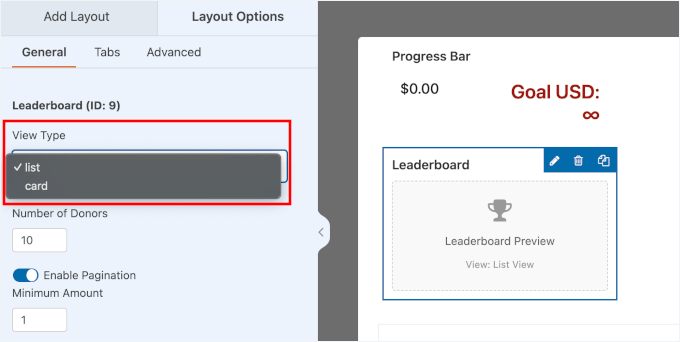
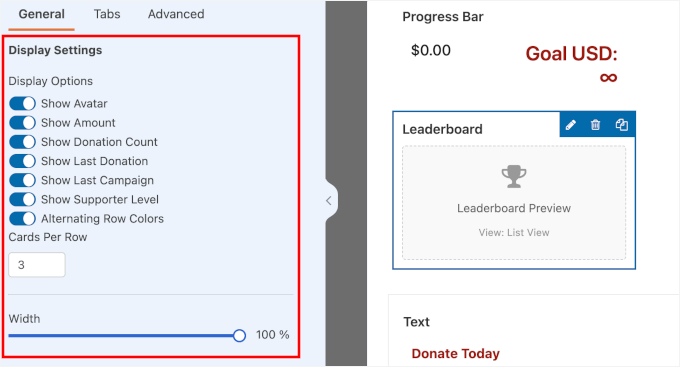
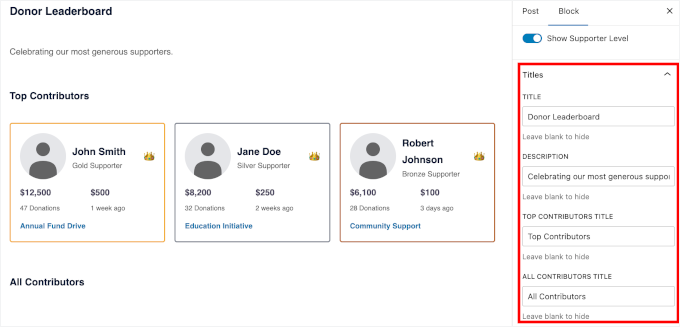
- Number of Donors – Choose how many donors you want to display on the leaderboard.
- Pagination – Turn this on if you want to split the list across multiple section pages. This is helpful if you have a lot of donors.
- Order By – Decide how donors are sorted, such as by total donations, by most recent contributions, or by name.
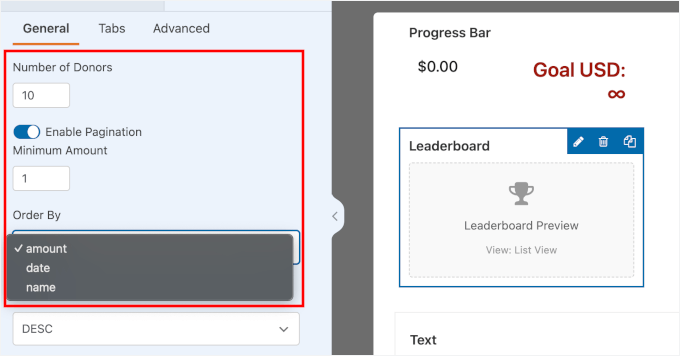
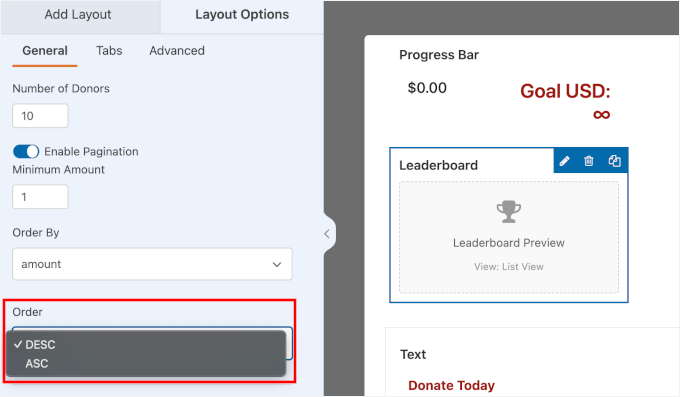
- ‘DESC’ (Descending) means the highest values appear first. This is the standard setting, so your top donors show up at the top of the list.
- ‘ASC’ (Ascending) means the lowest values appear first, so the list starts with smaller amounts.
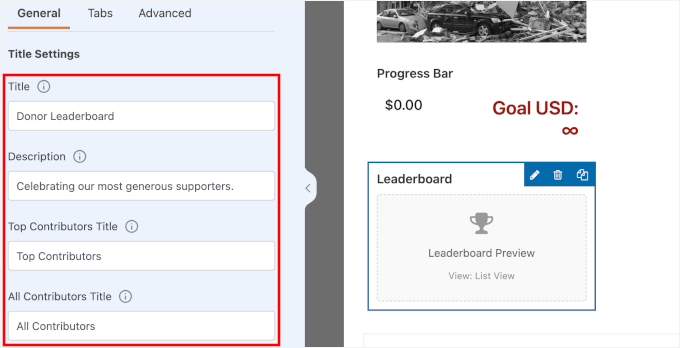
- Title – The main heading shown at the top of the leaderboard.
- Description – A short message explaining what the leaderboard is about.
- Top Contributors Title – The label used for your top donors.
- All Contributors Title – The label used for the full donor list.
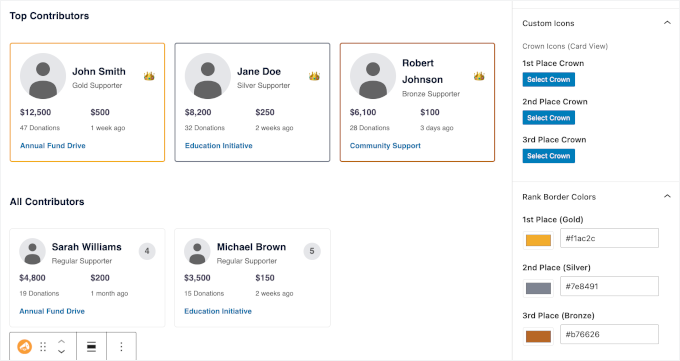
- Donor Gravatar
- Donation amount
- Donation count
- Last donation date
- Campaign name
- Supporter level
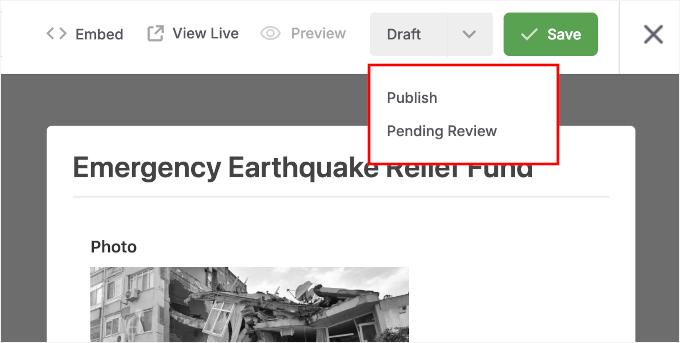
Step 3: Embed Your Campaign on Your Site
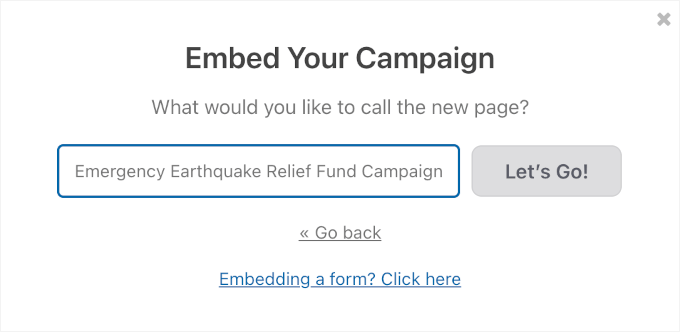
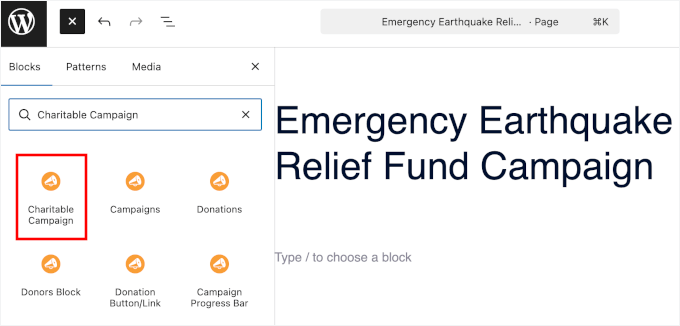
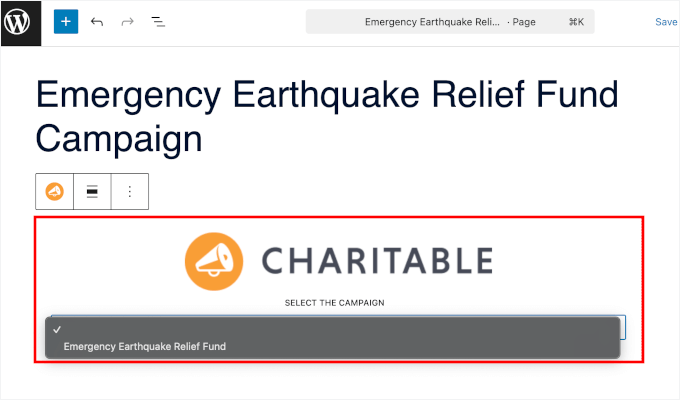
With your campaign created and the donor leaderboard added, it’s time to display it on your site. Charitable makes this process incredibly simple with its built-in embed wizard. First, click the ‘Embed’ button in your campaign settings to launch the wizard, which will guide you through adding your campaign to any page or post on your site.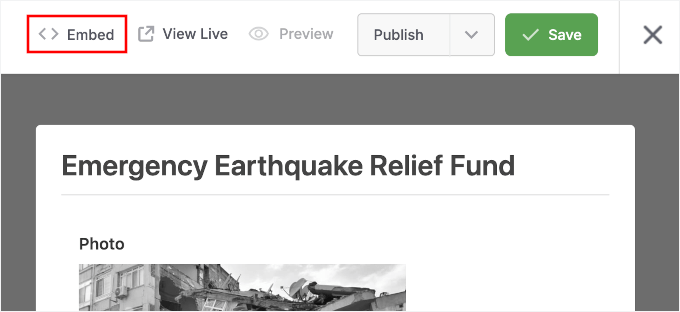
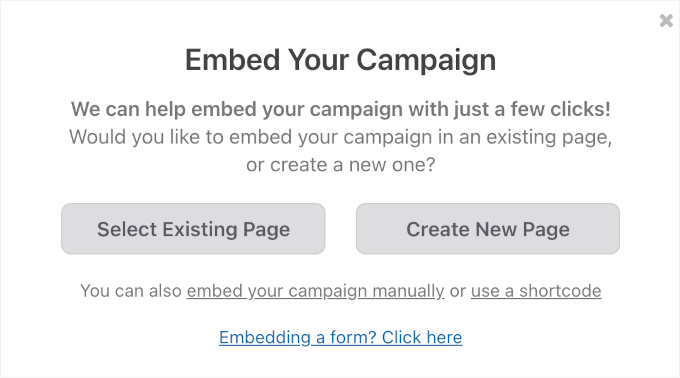
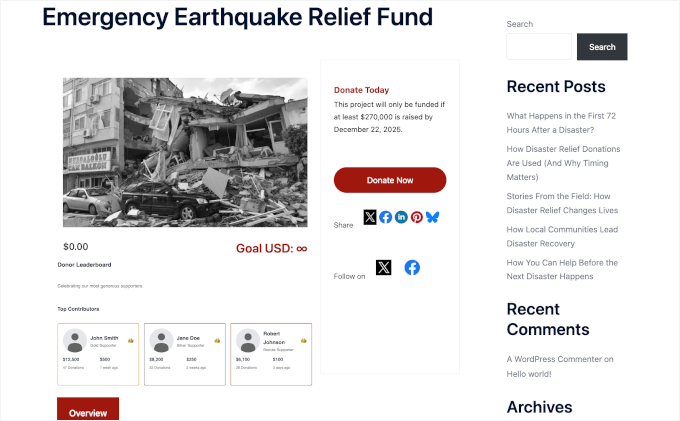
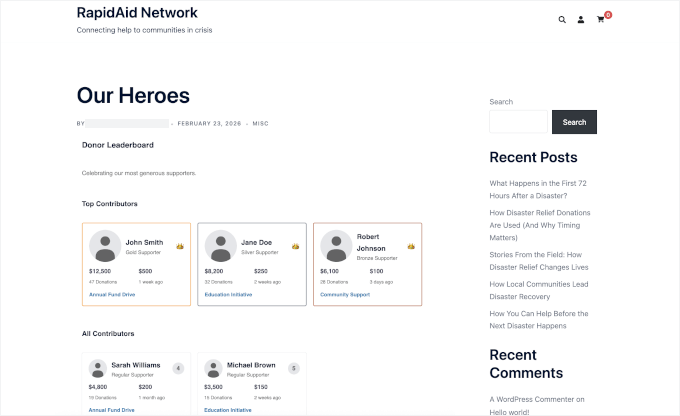
💡 Note: Since this is a new campaign, you might not see your donor leaderboard right away. This is normal – once donations start coming in, the leaderboard will automatically update and display your donors.
Alternative: Show a Donor Leaderboard Across All Campaigns
If you’re running multiple fundraising campaigns, then you might want to showcase overall donor support across your entire site. This approach highlights your most generous supporters regardless of which specific campaign they contributed to. Charitable gives you two flexible ways to display a donor leaderboard that spans all your campaigns. Both methods are beginner-friendly and take just a few minutes to set up. Let me show you both options so you can choose the one that works best for your website.Option 1: Add a Donor Leaderboard Using the Block Editor
This method is perfect if you want to show top donors across all campaigns on a specific page or post. It works seamlessly with the WordPress block editor (also called Gutenberg). Start by opening the page or post where you want to add your leaderboard. Then, click the ‘+’ button and search for Charitable’s ‘Donor Leaderboard’ block.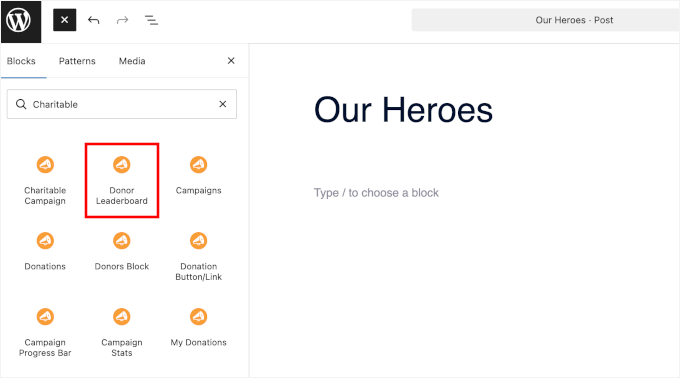
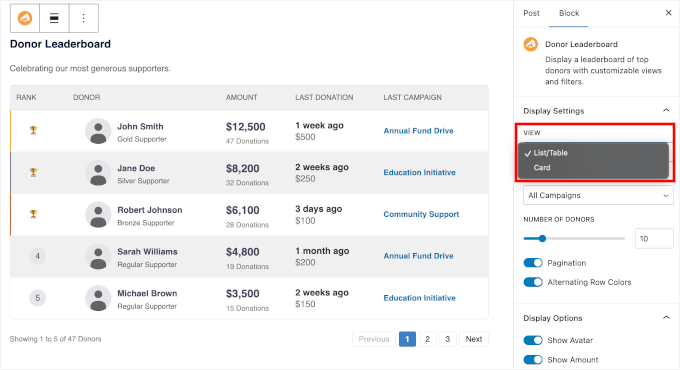
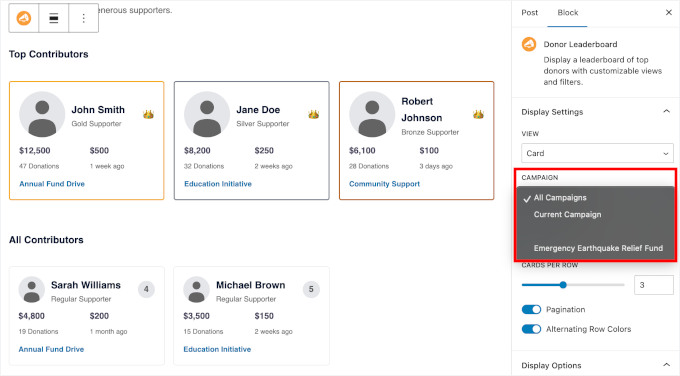

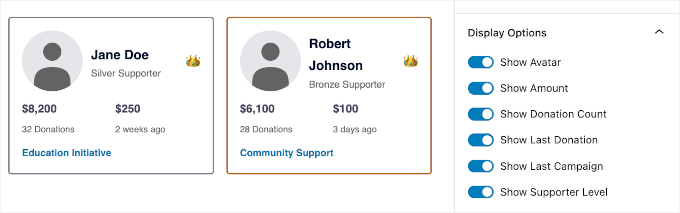
Option 2: Add a Donor Leaderboard Using a Shortcode
This method is ideal when you want to add your donor leaderboard to sidebars, widget areas, or page builders. Shortcodes give you more flexible placement options across your entire website. To get started, go to Appearance » Widgets in the WordPress dashboard.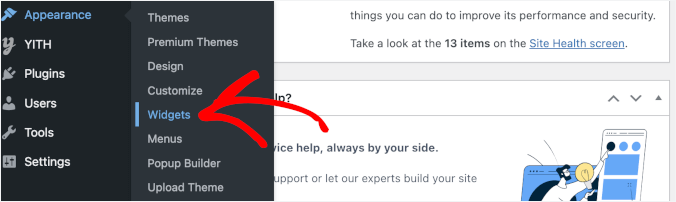
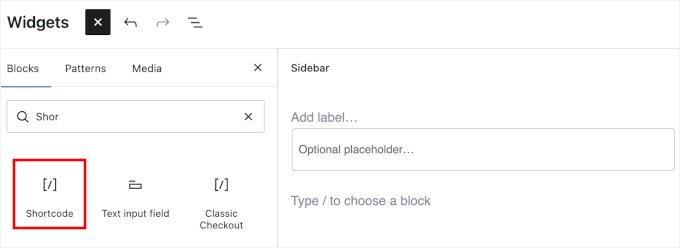
[charitable_donor_leaderboard]
Here’s what it might look like on your screen:
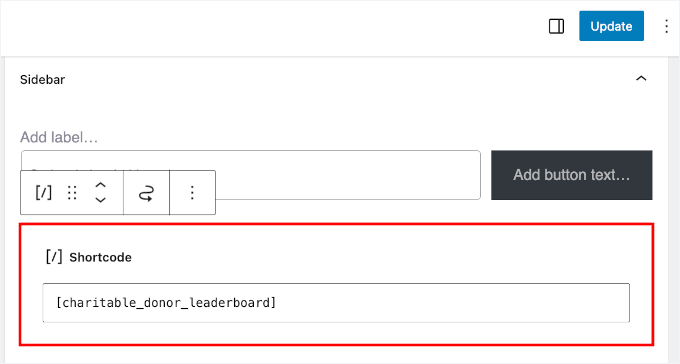
💡 Note: The widget area supports the Donor Leaderboard block, which you can use instead. However, in this method, we’ll show you how to use a shortcode.
The shortcode method is particularly useful if you’re using a page builder like SeedProd, Elementor, or Beaver Builder. This is because you can easily drop the shortcode into any section of your design or a custom landing page.
This basic shortcode will display your donor leaderboard with the default settings. However, you can also customize it using parameters, which are small options added to the shortcode. This controls exactly how it looks and what it displays.
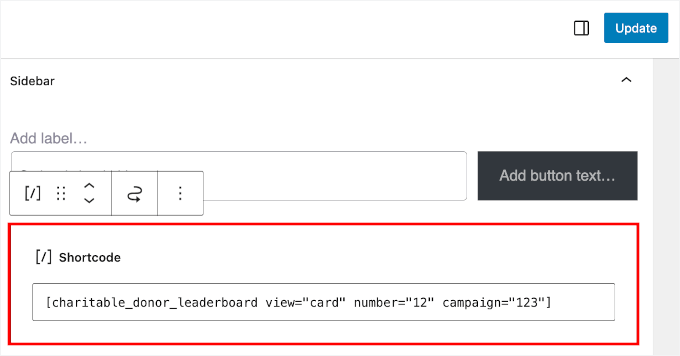
For example, if you want to show a card view with 12 donors from a specific campaign, you can use:
[charitable_donor_leaderboard view="card" number="12" campaign="123"]
Just replace “123” with your actual campaign ID. You can find this ID number in the URL address bar when you are editing a specific campaign (e.g., post=123).
Bonus Tip: Create a Donor Portal in WordPress
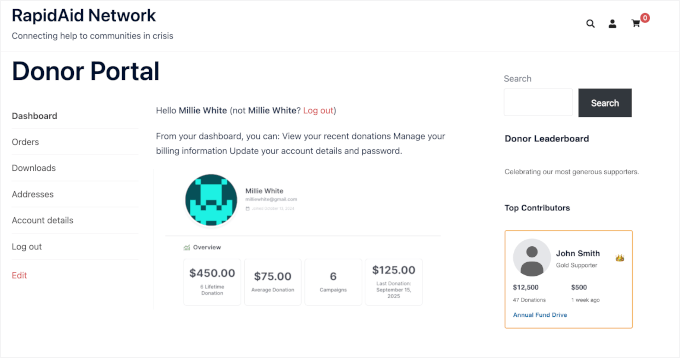
After setting up your donation system, you may also want to improve the experience for returning donors. A donor portal makes it easy for supporters to manage their contributions without contacting you for help. It gives them a secure place on your WordPress site to view their donation history, manage recurring gifts, and update their details anytime.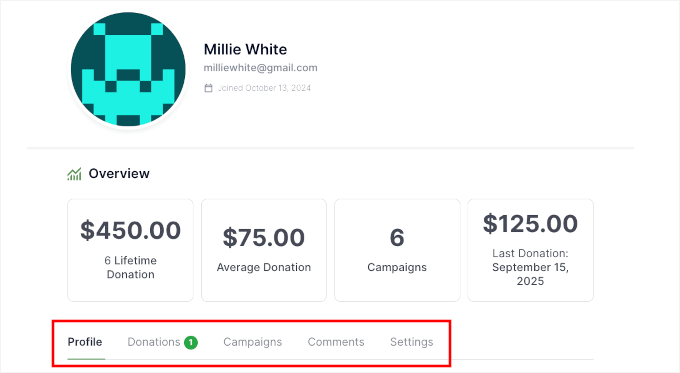
FAQs About Creating a Donor Leaderboard in WordPress
Here are some common questions readers ask about using donor leaderboards in WordPress.Can I show a donor leaderboard for a specific campaign only?
Yes, you can display a donor leaderboard for a specific campaign in WordPress. With Charitable, when you add the Donor Leaderboard block or use the shortcode, simply select the specific campaign from the dropdown menu or add the campaign ID parameter to show donors from that campaign only.Can I control what information appears on the donor leaderboard?
Yes, you have full control over what information displays on your leaderboard. You can choose to show or hide donor avatars, donation amounts, donation counts, last donation dates, campaign names, and supporter levels through the block settings or shortcode parameters.Will the donor leaderboard update automatically?
Yes, your donor leaderboard updates automatically in real-time whenever someone makes a new donation. You don’t need to manually refresh or update anything – the leaderboard will reflect the current rankings as soon as donations are processed.Can I place the donor leaderboard anywhere on my site?
Yes, you can place your donor leaderboard virtually anywhere on your WordPress site. You can add it to pages, posts, sidebars, footers, or any widget-ready area using either the block editor or the shortcode method.Does using a donor leaderboard actually help increase donations?
Yes, donor leaderboards can help increase donations by creating social proof and friendly competition. When potential donors see others contributing, it builds trust and encourages them to give. Plus, existing donors may increase their contributions to improve their ranking or recognition.Next Steps to Grow Your Nonprofit WordPress Website
Now that you’ve set up your donor leaderboard, you’re well on your way to building a stronger fundraising presence online. A leaderboard is just one piece of creating an effective nonprofit website that connects with supporters and drives donations. To continue growing your nonprofit’s impact, here are some guides to expand your fundraising capabilities and reach more supporters:- How to Accept International Donations in WordPress
- How to Add a Fundraising Thermometer in WordPress
- Best WordPress Plugins for Nonprofits
- Ways to Get More Donations for Your Nonprofit Site
- Donation Form Best Practices to Boost Donations in WordPress













Leave a Reply