



📚 TL;DR: The easiest way to display WooCommerce reviews anywhere on your site is with Smash Balloon’s Reviews Feed Pro. It detects your products automatically and lets you add review feeds to your homepage or sidebars – no coding needed.
Why Show WooCommerce Reviews on Your WordPress Website?
Showing WooCommerce reviews outside of your product pages is a simple way to build trust and boost sales across your entire site.Most shoppers look for social proof before they buy. In fact, over 90% of consumers read reviews before making a purchase.However, when reviews only appear on product pages, many visitors never see them. This is especially true if they land on your homepage or a landing page first.I’ve seen this with a lot of WooCommerce stores. The reviews are there, but they’re not doing much because they’re hidden where casual visitors don’t usually look.Here’s why showing your reviews in more places can make a real difference:- 🤝 Build trust right away — when visitors see real feedback as soon as they arrive, they feel more confident browsing and buying.
- 📈 Increase conversions with social proof — reviews work like recommendations from other customers, which is often more convincing than sales copy.
- 🧩 Stop letting great reviews go unnoticed — if shoppers never reach your product pages, they miss your best testimonials.
- 🧑💻 Reach visitors no matter where they are — adding reviews to your homepage, landing pages, or sidebar helps more people see them.
- 💰 Use reviews as a flexible sales booster — you can highlight feedback by product, category, or tag to match what different visitors care about.
- Step 1: Install and Activate Reviews Feed Pro
- Step 2: Create Your First WooCommerce Review Feed
- Step 3: Customize Your Review Feed Design
- Step 4: Add Multiple Sources to One Feed (Optional)
- Step 5: Display Your Review Feed on Your Site
- Bonus Tip: Show Google, Facebook, and Yelp Reviews in WordPress
- FAQs About Displaying WooCommerce Reviews in WordPress
- Next Steps to Grow Your WooCommerce Store
Step 1: Install and Activate Reviews Feed Pro
Smash Balloon’s Reviews Feed Pro is the best customer review plugin for WordPress. It lets you display reviews from WooCommerce and other platforms anywhere on your WordPress website.This powerful plugin comes with a visual customizer, flexible layout options, and automatic review syncing. So, your feed always stays up to date without any manual work on your end.
⚠️ Before You Begin: You’ll need an active WooCommerce store set up on your WordPress website. Also, make sure that reviews are enabled in your store by checking WooCommerce » Settings » Products and checking the ‘Enable reviews’ checkbox.If you haven’t started yet, check out our guide on how to set up a WooCommerce store.
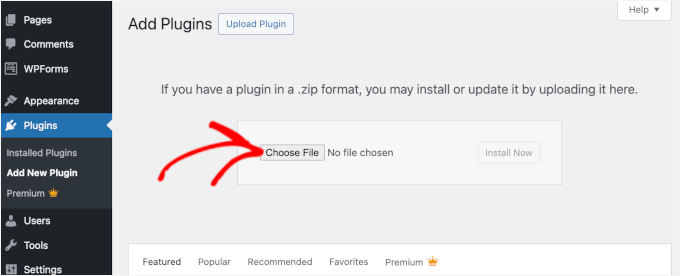
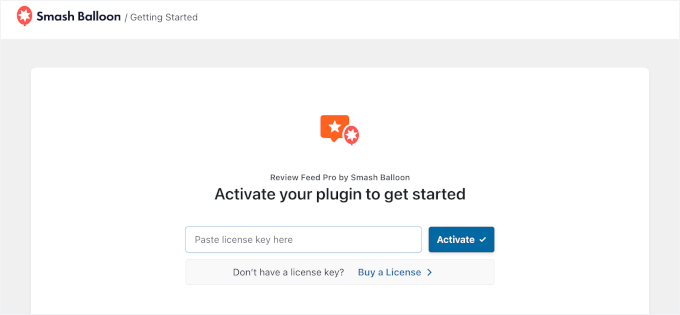
The Reviews Feed free version is a good starting point, but it’s limited to Google and Yelp reviews. To display WooCommerce reviews and access more powerful options, you’ll need Reviews Feed Pro.To get started, head over to the Smash Balloon Reviews Feed Pro website and sign up for an account. From there, you’ll need to pick a plan and complete the checkout process.

Step 2: Create Your First WooCommerce Review Feed
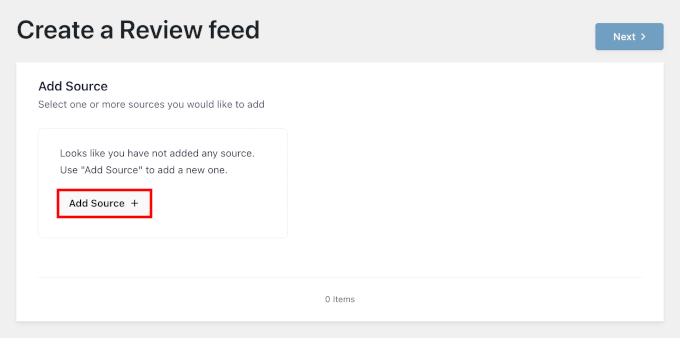
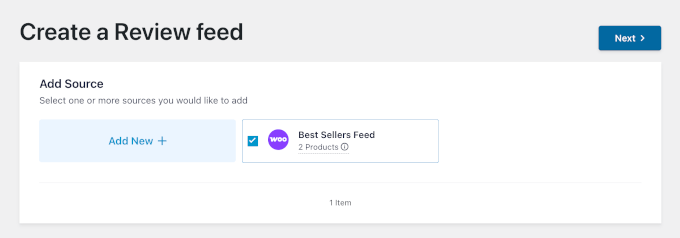
Now, it’s time to create your first feed.From your WordPress dashboard, navigate to Reviews Feed » All Feeds. This is where you can manage all your review feeds once you start creating them.To get started, click the ‘Add New’ button at the top of the page.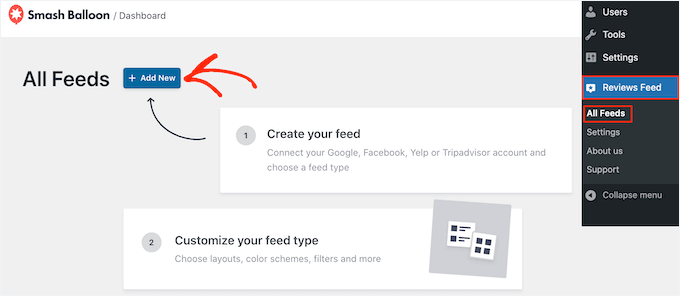
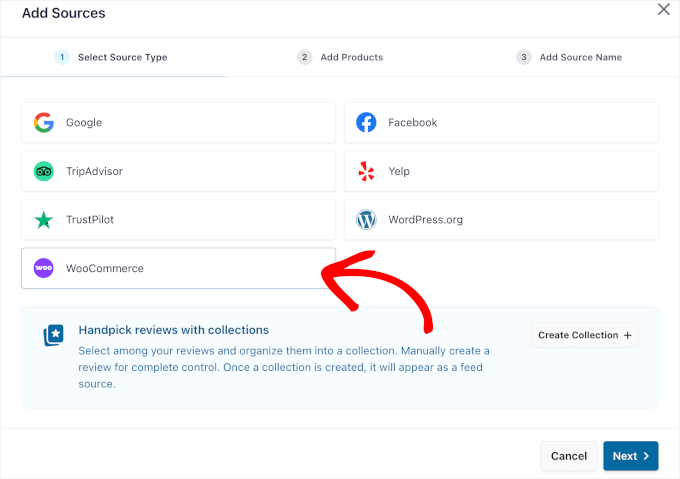
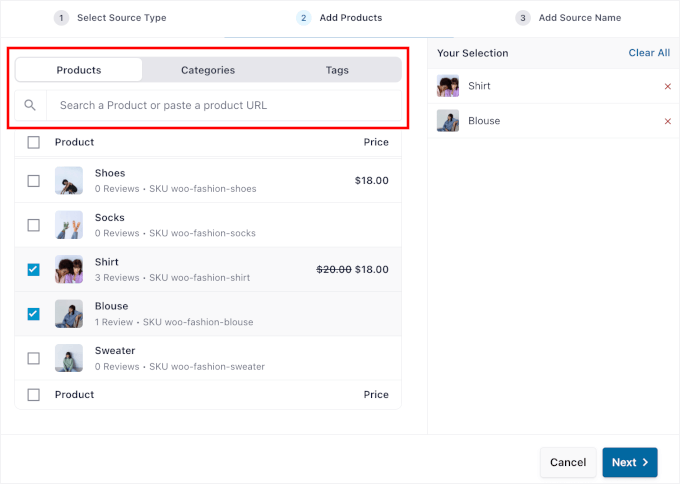
- Individual Products — pick specific products by searching for them by name or SKU. This works well if you want to highlight reviews for popular products.
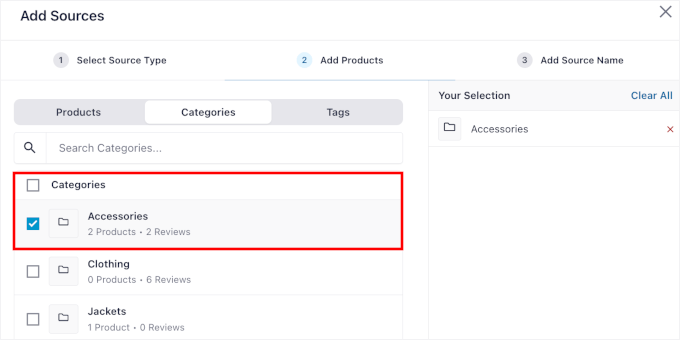
- Categories — display reviews from an entire product category at once. This is a great option if you want to showcase feedback across a full product range.
- Tags — pull reviews from products that share a specific tag. This is useful for niche collections or themed groups, such as “summer picks” or “staff favorites.”
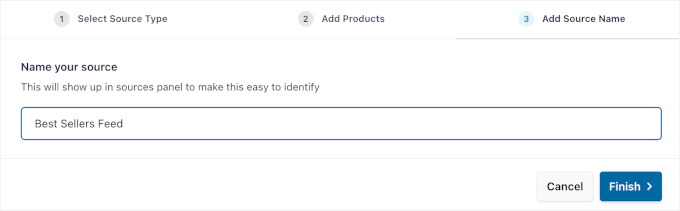
Step 3: Customize Your Review Feed Design
Now that your feed is pulling in reviews, it’s time to make it look great on your site.Reviews Feed Pro will redirect you to a live customizer. It shows you a real-time preview of your feed as you make changes. This makes it easy to get everything looking just right before you publish.Adjusting the Layout
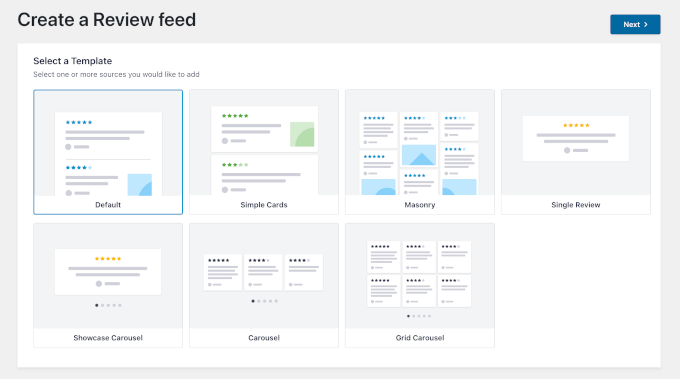
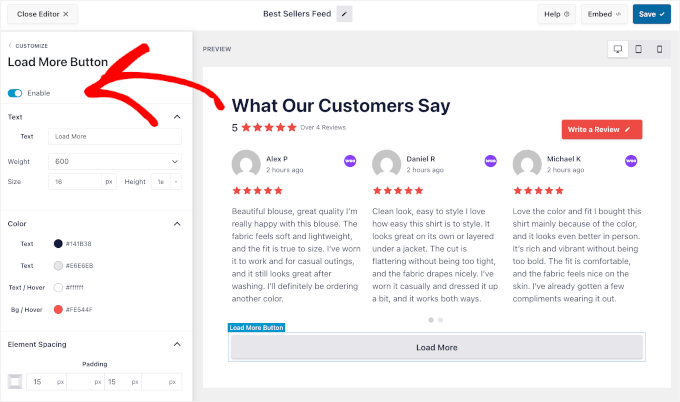
The first thing you’ll want to do is choose a layout for your feed. The plugin offers several options, for example:- Carousel — Displays reviews in a sliding format, which works well for homepages or landing pages where space is limited.
- Grid — Shows reviews in a clean, organized grid, making it a good fit for most pages.
- Masonry — Similar to a grid, but with varying card heights for a more natural, Pinterest-style look.
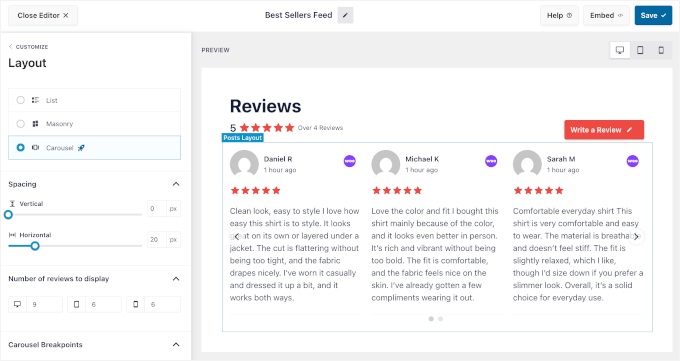
💡 Note: Customization settings may vary depending on your chosen template. I’m using the ‘Carousel’ template.
Here, you can control how your reviews look from the left-hand panel, such as:- Spacing between reviews — Controls how much space there is between each review, so everything feels less crowded and easier to read.
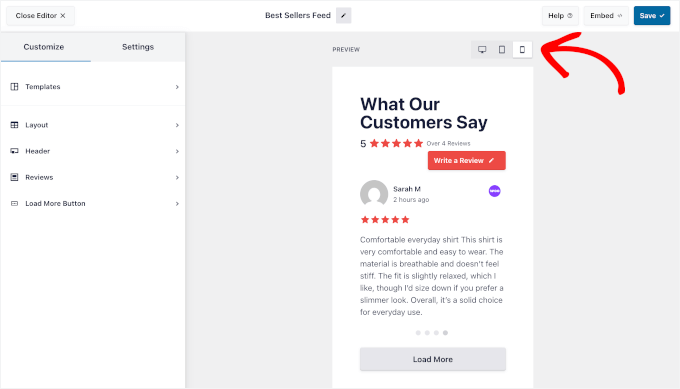
- Number of reviews shown on desktop, tablet, and mobile — Lets you choose how many reviews appear on different screen sizes, so your layout looks good on any device.
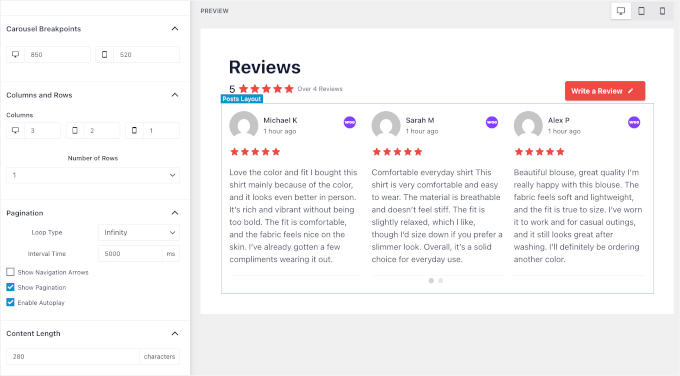
- Carousel breakpoints — Set how the review carousel adjusts on different screen sizes.
- Columns and rows layout — Control how many reviews appear in each row and column.
- Rewind or infinite loop — Choose whether the carousel stops at the last review or loops back to the start.
- Slide interval time (in milliseconds) — Decide how fast the reviews move when autoplay is enabled.
- Navigation controls — Show or hide arrows and pagination dots to make the carousel easier to use or to keep a simpler look.
- Autoplay — Turn automatic sliding on or off.
- Content length — Limit how many characters are shown in each review to keep the layout tidy.
Customizing the Header
From here, you can customize your WooCommerce reviews header. The header appears at the top of your review feed. It gives visitors instant context about what they’re looking at.First, make sure it’s enabled inside the customizer, and then you can click ‘Heading’ to customize it.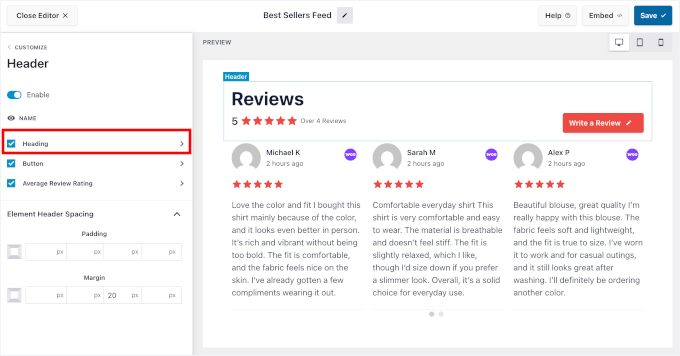
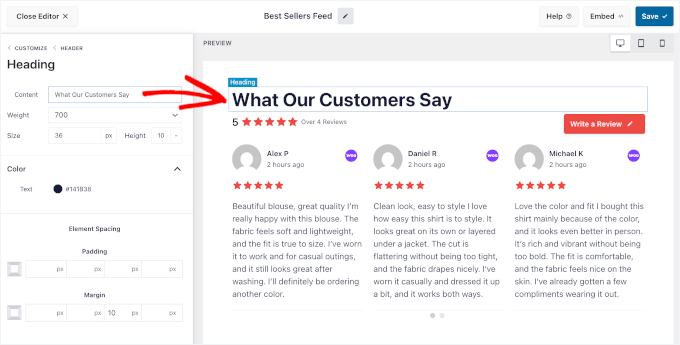
💡 Note: If you accidentally closed the editor, don’t panic. You can go to Reviews Feed » All Feeds in the WordPress admin and click on the ‘Edit’ icon next to the feed.
Once you’re done, you can click the button to go back to the main customization panel.Customizing the Reviews Section
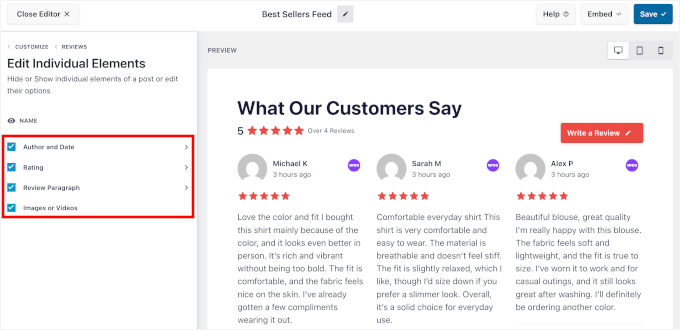
Next, you can fine-tune your reviews feed.In the ‘Reviews’ panel, you can customize your post style and how each individual review is displayed.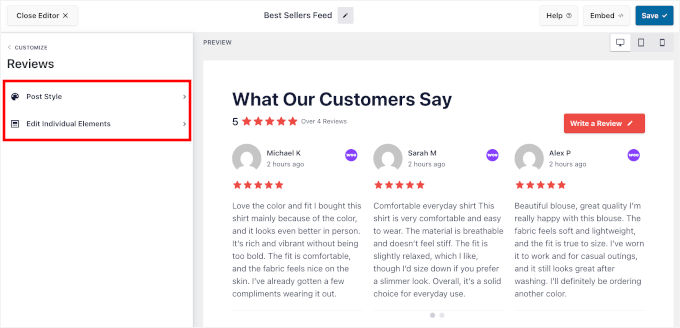
- Boxed — Displays each review inside a bordered box and lets you set a background color.
- Regular — Shows reviews without a box, using a simple divider line that you can customize the color.
💡 Note: Post style options may vary depending on your chosen template. I’m using the ‘Carousel’ template.
Matching the background or divider color to your brand colors helps the feed blend naturally with your WordPress theme.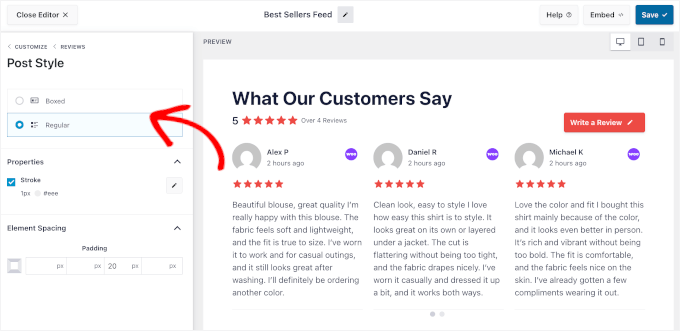
Expert Tip: When displaying customer reviews, you are technically handling user data. I recommend updating your Privacy Policy to mention that you display these reviews. This keeps your site compliant with data protection laws.
Step 4: Add Multiple Sources to One Feed (Optional)
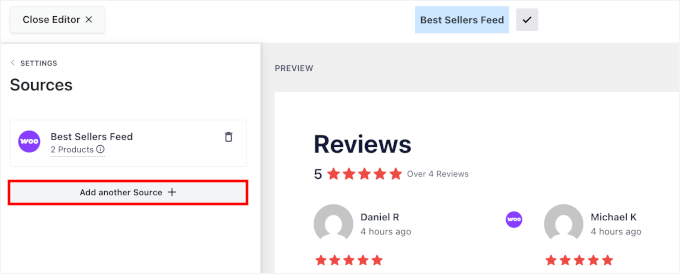
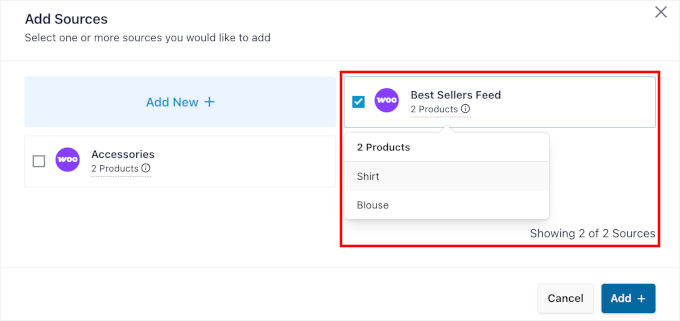
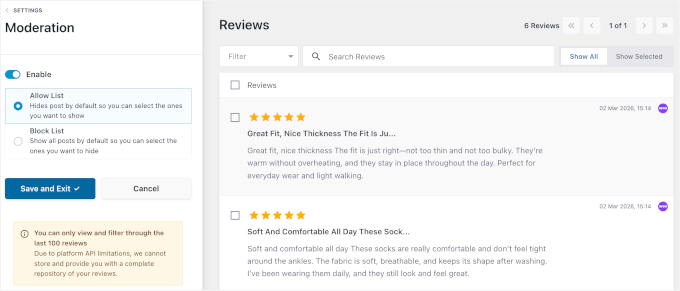
If you want to take your review feed a step further, Reviews Feed Pro makes it easy to combine reviews from multiple sources into a single feed.This is completely optional, but it can be a powerful way to show off a wider range of customer feedback in one place.To add a second source to your existing feed, go to Settings » Source inside the feed editor.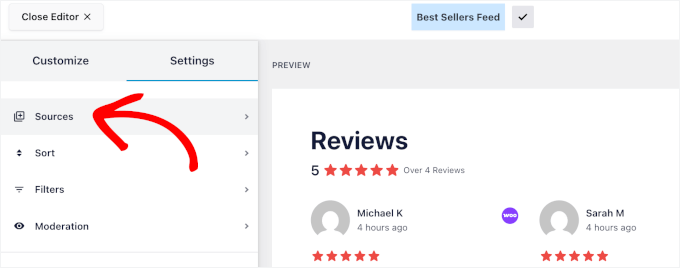
Step 5: Display Your Review Feed on Your Site
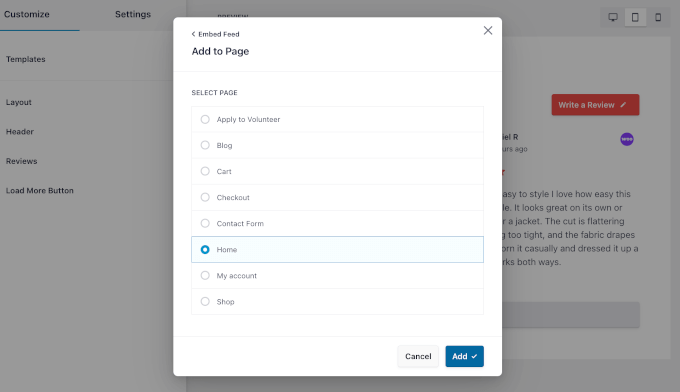
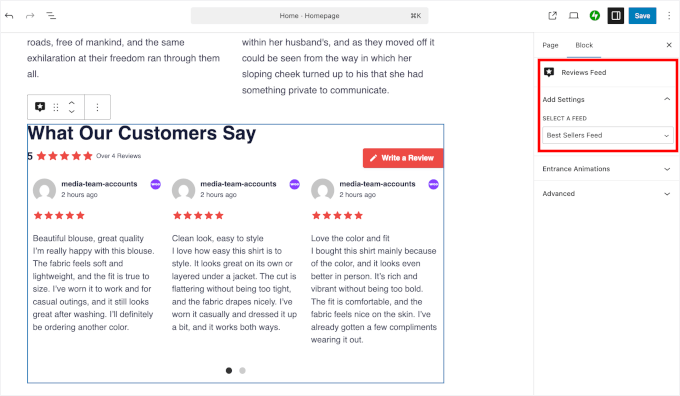
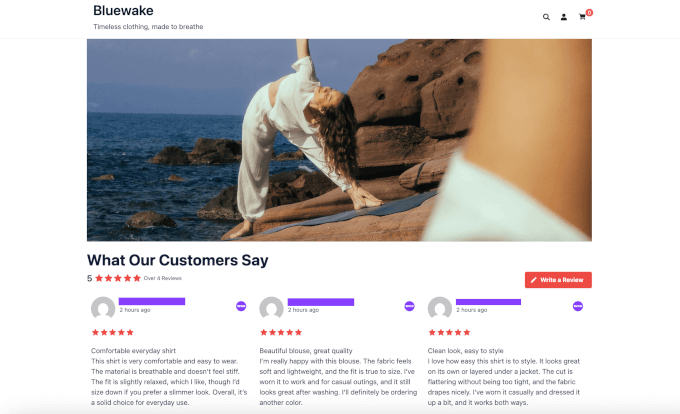
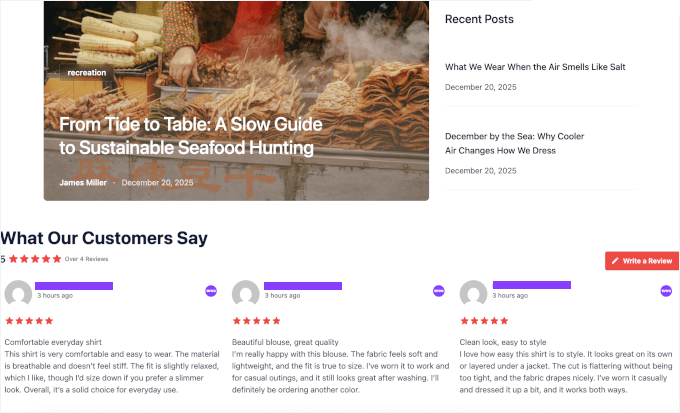
With your feed created and customized, it’s time to put it to work.Where you place your reviews matters just as much as the reviews themselves. The goal is to get them in front of visitors at the moments when they’re most likely to be influenced by social proof.I recommend starting with your homepage — it’s the first place most visitors land, and a well-placed review feed can immediately build trust.Here’s how to do each of these using Reviews Feed Pro.Add Feeds to Your Homepage Using a Block
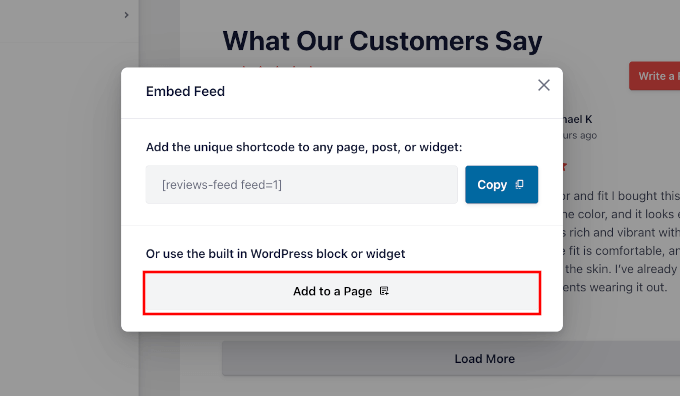
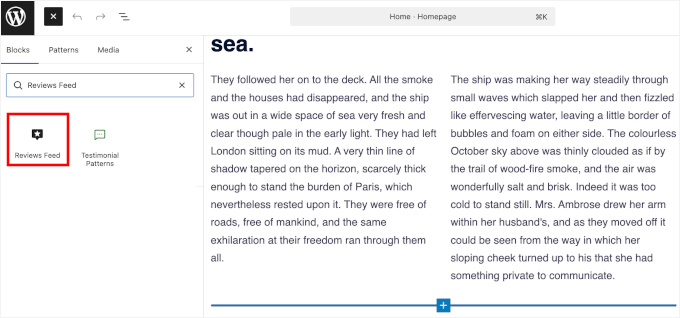
The easiest way to embed your review feed on a specific page is by using the Reviews Feed block inside the WordPress block editor.To do this, simply click the ‘Embed’ button to launch the embed wizard.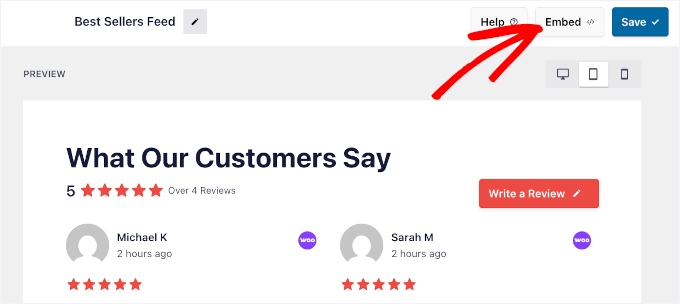
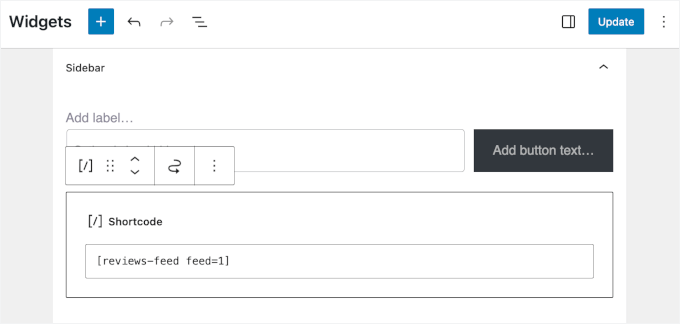
Add Reviews in Sidebars and Widget Areas With a Shortcode
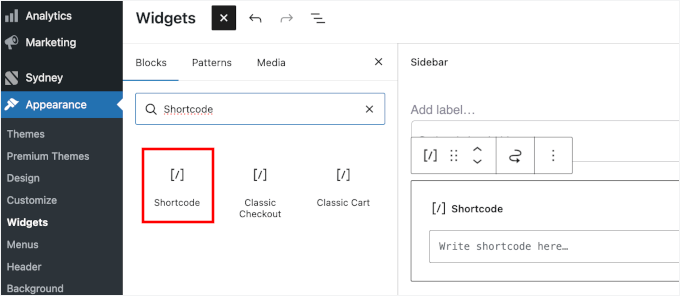
This method works great for sidebars and footers, which are commonly used in classic WordPress themes. It also works with most page builders that support shortcode blocks.To start, simply click ‘Embed’ inside Reviews Feed Pro’s customizer.💡 Note: If you accidentally closed the editor, don’t worry. You can find your shortcode in the Reviews Feed » All Feeds page and locate the feed you created. The shortcode will be listed there — it will look something like
[reviews-feed].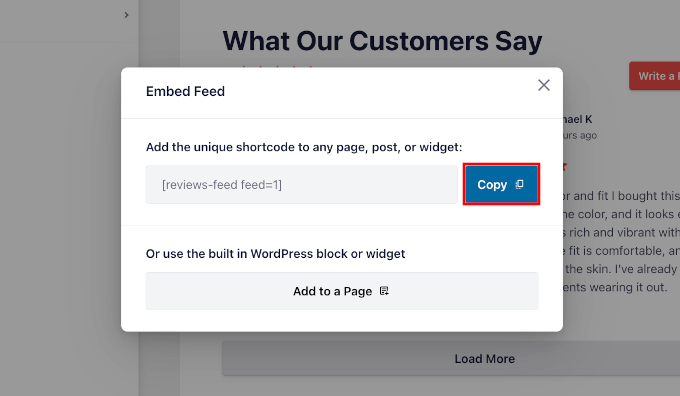
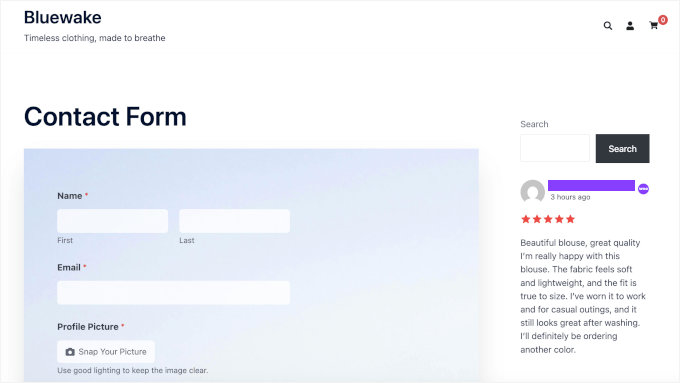
🧑💻 Pro Tip: Do you want to enable a profile picture upload to your contact form just like in the screenshot above? Check out our guide on how to let users take live photos and videos in WordPress forms.
Add Feeds Sitewide Using Full Site Editing (FSE)
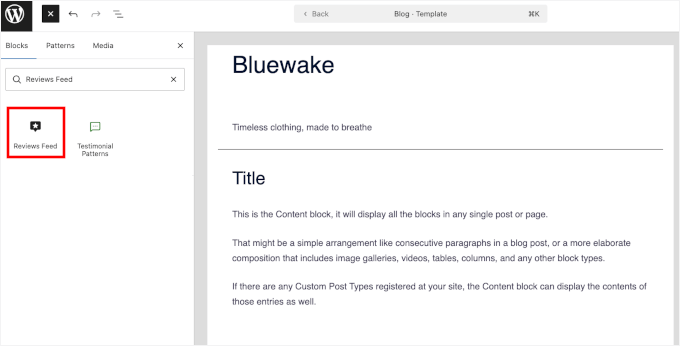
If your WordPress theme supports Full Site Editing, you have an even more powerful option available. FSE lets you add your review feed directly to theme templates like your header, footer, or custom page templates.This way, your reviews will appear consistently across multiple pages without having to edit each one individually. It’s a real time-saver for stores that want sitewide social proof without a lot of manual work.To get started, go to Appearance » Editor from your WordPress dashboard.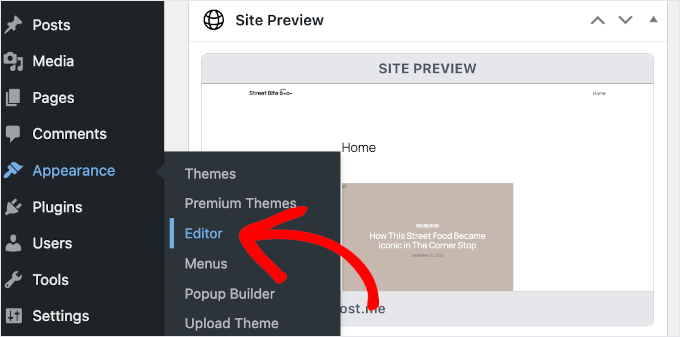
💡 Note: If you don’t see ‘Editor’ in your menu, you are likely using a classic theme. In that case, you should stick to the shortcode or widget method shown above.
From there, navigate to the template where you’d like to add the feed.For example, I’m going to add it to my active ‘Blog’ template.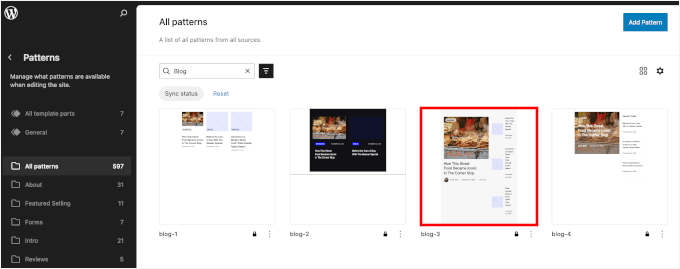
Bonus Tip: Show Google, Facebook, and Yelp Reviews in WordPress
If you want to pull even more social proof onto your site, you can display reviews from major platforms like Google, Facebook, and Yelp alongside your WooCommerce reviews.These can boost credibility and increase conversions even further.Smash Balloon’s Reviews Feed Pro supports all of these platforms, so you can create separate feeds for each one or combine them with your WooCommerce reviews using the multi-source feature you learned about in Step 4.This is a great way to show visitors that your store is trusted across multiple platforms, not just on your own WordPress website.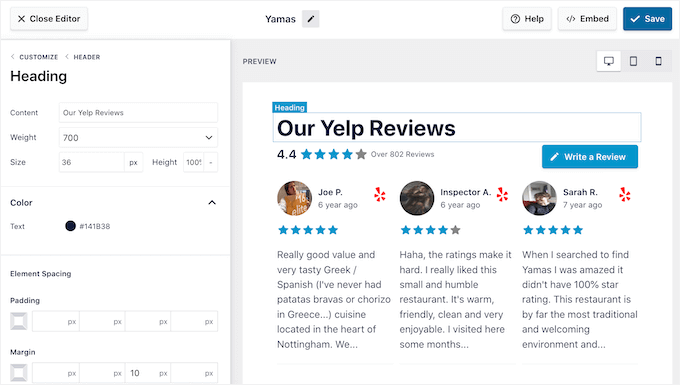
FAQs About Displaying WooCommerce Reviews in WordPress
Below are answers to some common questions about displaying WooCommerce reviews on your WordPress website.Can I display reviews from only specific products?
Yes, you can show reviews from specific products using Smash Balloon Reviews Feed Pro. You can choose the ‘Individual Products’ option when setting up your feed and select products by name or SKU. This way, only reviews from those products will appear in the feed.Do new reviews automatically appear in my feed?
If you use Reviews Feed Pro, new reviews will automatically appear in your feed without any manual updates needed. This plugin syncs with your WooCommerce store in the background, so fresh reviews are pulled in and displayed as they come in.Will short reviews appear in my feed?
Yes, short reviews will appear in your feed by default. However, some customer review plugins let you control what content is displayed inside each review card.Can I display a WooCommerce review feed on multiple pages?
Yes, you can display your WooCommerce review feed on as many pages as you like.For example, if you’re using Reviews Feed Pro, you can add the feed using a block in the block editor or paste a shortcode into any page, widget area, or page builder module where you want the reviews to appear.Can I combine WooCommerce reviews with reviews from other platforms?
Yes, you can combine WooCommerce reviews with reviews from other platforms like Google, Facebook, and Yelp using Reviews Feed Pro.Next Steps to Grow Your WooCommerce Store
Congratulations – you’ve learned how to create a feed from your WooCommerce products!Next, you might want to check out our other helpful guides on:- How to Add a Customer Reviews Page in WordPress
- How to Add Rotating Testimonials in WordPress
- How to Send a Coupon After a WooCommerce Product Review
- How to Get More Customer Reviews
- Best WooCommerce Points and Rewards Plugins











Leave a Reply