

TL;DR: In this guide, you will learn how to connect WPForms with n8n to automate your daily tasks. I will show you how to set up the integration and create workflows that instantly send form data to your favorite apps, saving you hours of manual work.
Here’s what I cover in this article:
- What Is n8n?
- How to Build Your Workflow in n8n
- Integrate WPForms with n8n for Powerful Automation
- Testing and Finalizing Your Automated Workflow
- Frequently Asked Questions About Automating Forms With n8n
- Additional Resources for WordPress Forms and Automation
What Is n8n?
n8n is a powerful workflow automation tool that acts as a bridge between your WordPress site and other apps. Think of it as a digital assistant that takes data from one place (like your contact form) and instantly delivers it to another (like Google Sheets or Slack). Unlike simple plugins that might only connect to one specific service, n8n allows you to build complex workflows. This means a single form submission can automatically trigger a chain of actions across different apps.
Related Post: How to Add n8n-Like Automation in WordPress
Why Automate Your Forms With n8n?
Manually copying data from emails to spreadsheets or CRMs takes unnecessary time and effort. Automating your forms with n8n eliminates this busy work. Here are the biggest benefits of using n8n with WPForms:- Save Time: Automation handles repetitive data entry instantly, freeing you up to focus on growing your business.
- Eliminate Human Error: Manual copying from data often leads to typos and other errors. n8n transfers your data exactly as it was entered, every single time.
- Data Privacy: Because n8n can be self-hosted on your own server, you keep full control over your customer data. This is a huge advantage over other cloud-only tools.
- Complex Workflows: You aren’t limited to simple ‘A to B’ connections. You can filter data, format it, and send it to multiple tools simultaneously using n8n’s visual editor.
n8n vs. Other Automation Tools
You might be familiar with other automation tools like Zapier or Make.com. While they all serve a similar purpose, n8n stands out in a few key areas. Here is a quick comparison to help you decide:| Feature | n8n | Zapier / Make |
|---|---|---|
| Hosting | Cloud or Self-hosted (Your server) | Cloud Only |
| Cost | Free (Self-hosted) or Paid Cloud | Subscription (Can get expensive) |
| Data Privacy | Full Control (Self-hosted only) | Data stored on their cloud |
| Flexibility | High (Custom code & complex logic) | Medium (Linear workflows) |
Related Guide: How to Set Up Make.com-Like Automation in WordPress
What You Need to Get Started
Ready to start automating? Here is the checklist of what you will need for this tutorial:- WPForms Pro License: The n8n integration is a premium addon, so you will need WPForms Pro or higher.
- WPForms Plugin: Ensure you have installed WPForms version 1.9.8.1 or newer.
- n8n Account: You can sign up for a 14-day free trial on n8n.io, or install the self-hosted version on your own server for free.
How to Build Your Workflow in n8n
Now that you understand how n8n works, let’s start building your first automated workflow. I’ll walk you through each step of setting up n8n to receive data from your WordPress forms.Step 1: Accessing the n8n Dashboard
First, you need to log in to your n8n account. Head over to n8n.io and sign in with your credentials. Once you’re logged in, you’ll see the n8n dashboard. This is where you’ll create and manage all your workflows. To start building a new workflow, click the ‘Start from scratch’ button. This opens the workflow editor where you’ll build your automation.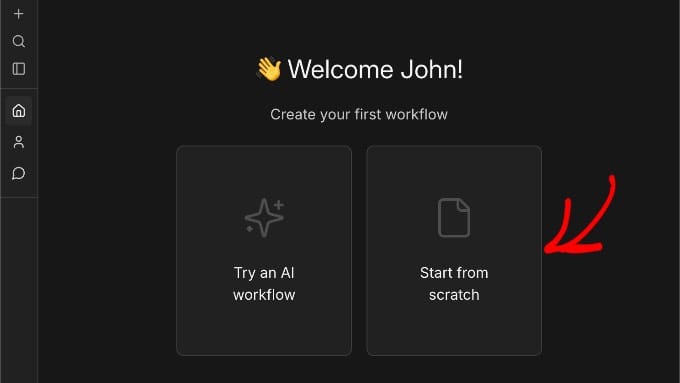
Step 2: Creating a New Automated Workflow
In the workflow editor, you’ll see a canvas with a ‘+’ icon. Click this icon to add a new node to your workflow.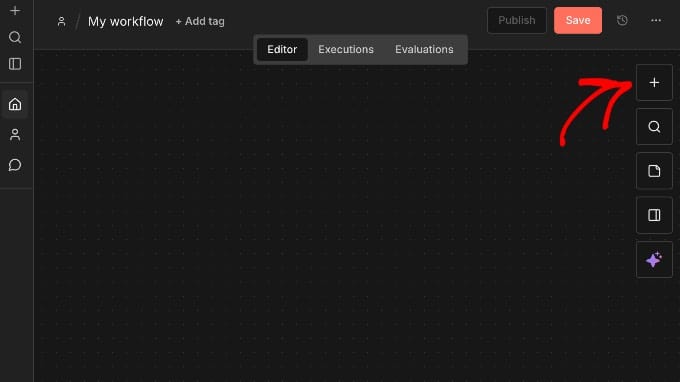
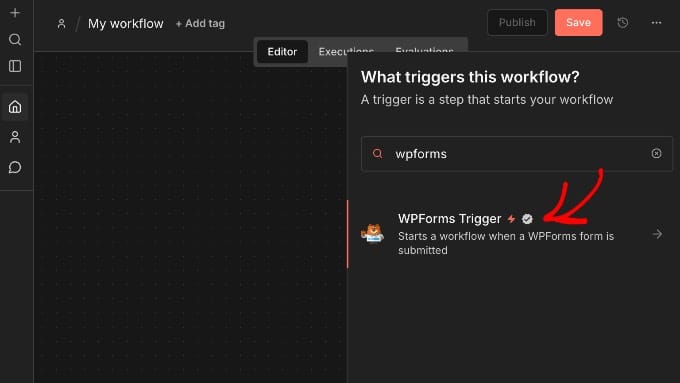
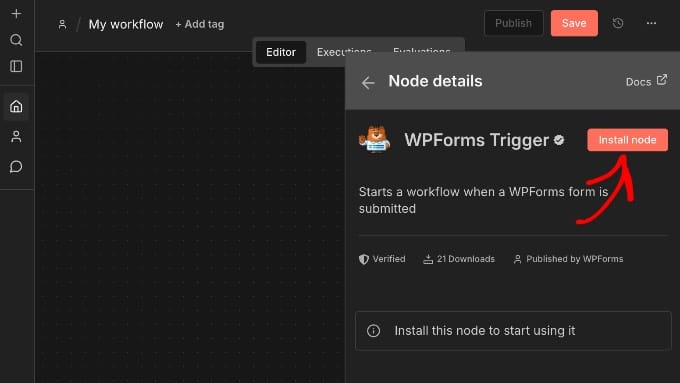
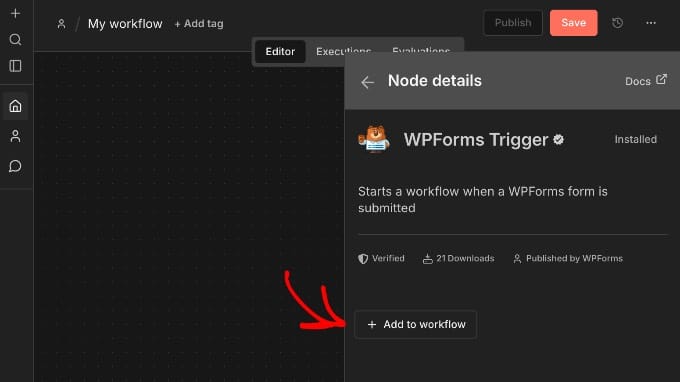
Step 3: Configuring WPForms Triggers in n8n
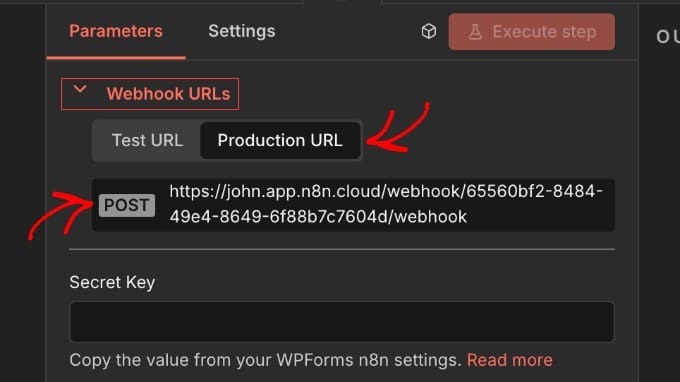
Once you add the WPForms Trigger node, it will open automatically, showing its configuration settings. If it doesn’t open, simply click on the node to view its settings panel. Click on the ‘Parameters’ tab at the top of the settings panel. Here, you’ll find the webhook configuration that connects n8n to your WordPress site.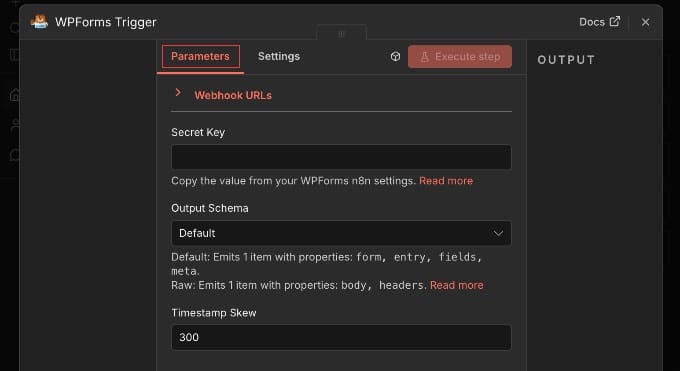
Integrate WPForms with n8n for Powerful Automation
With your n8n workflow ready to receive data, it’s time to connect it to your WordPress forms. This step links your form submissions directly to your automation workflow.Step 1: Activating n8n Integration in WPForms
In your WordPress dashboard, go to WPForms and either create a new form or open an existing one in the form builder. For this tutorial, you can use any form. Even a simple contact form works perfectly. Once you’re in the form builder, navigate to Marketing » n8n in the left sidebar.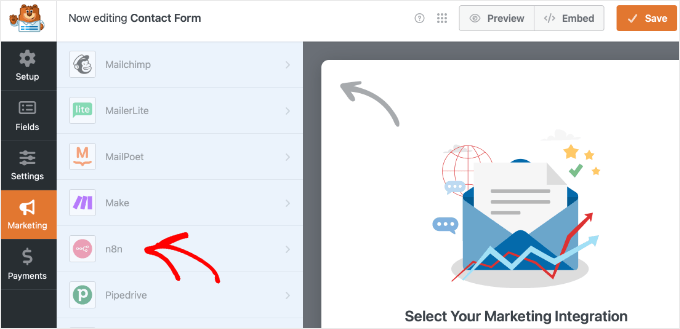
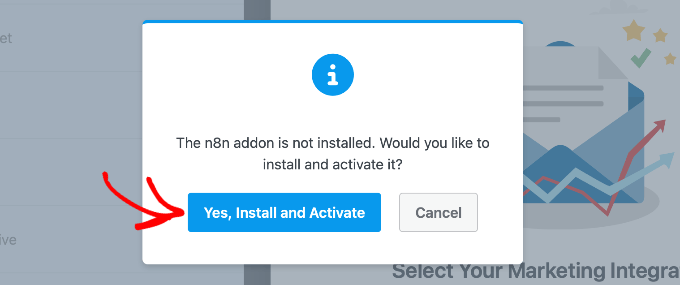
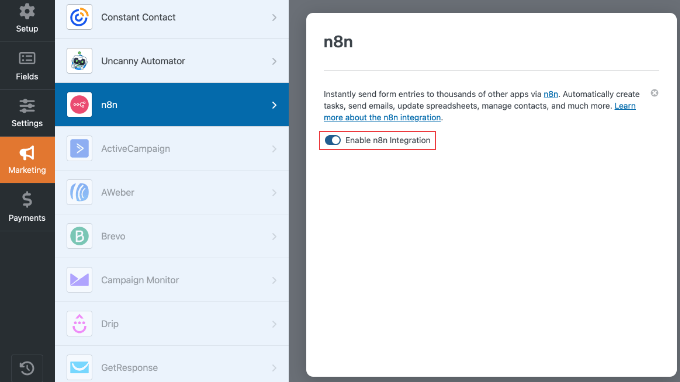
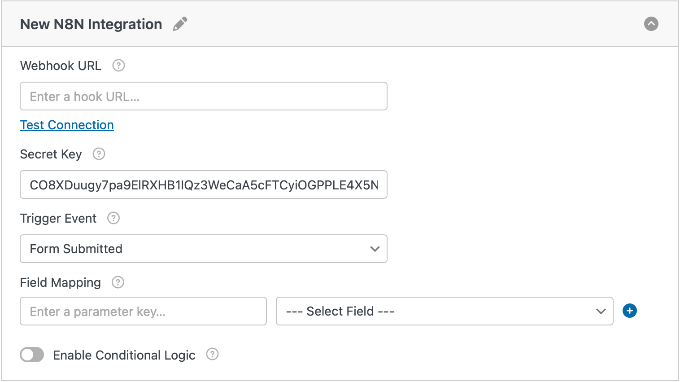
Step 2: Configuring Integration and Mapping Fields
Now, paste the Production URL you copied from n8n into the ‘Webhook URL’ field in WPForms. Make sure you paste the complete URL without any extra spaces. After pasting the webhook URL, you will see a ‘Test Connection’ link. You can skip this for now. The test will likely fail because we haven’t added the Secret Key to n8n yet.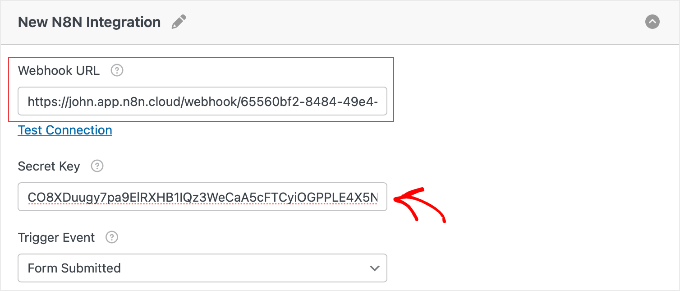
Note: If you are working on a localhost site, then the test may fail due to network settings, but your automation will still work.
Next, look for the ‘Secret Key’ field in WPForms. You’ll see a key that WPForms has automatically generated for you. Copy this secret key.
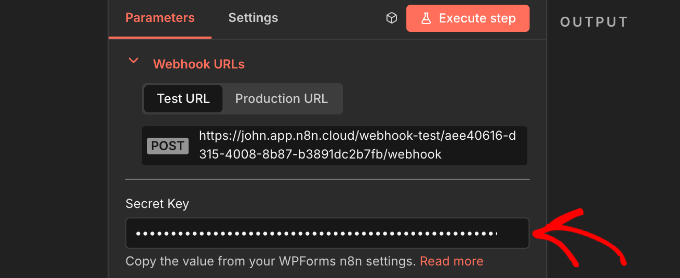
Switch back to your n8n browser tab where your workflow is still open. Find the ‘Secret Key’ field in the WPForms Trigger node settings and paste the key you just copied from WPForms.
Choosing a Trigger Event and Mapping Fields
Back in WPForms, look at the ‘Trigger Event’ dropdown. This setting determines when the data is sent to n8n. You have three options:- Form Submitted (Recommended): Runs the workflow every time a form is submitted.
- Entry Marked as Spam: Only runs when a submission is flagged as spam.
- Payment Processed: Only runs after a successful payment (useful for order forms and payment forms).
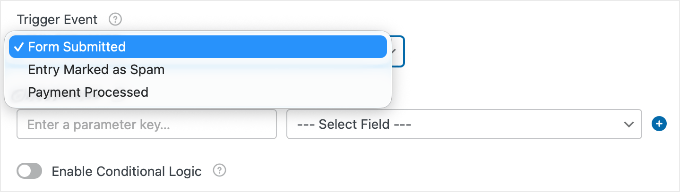
email as the key and select the ‘Email’ field from the dropdown.
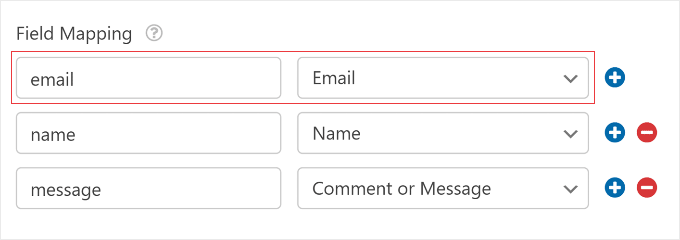
Quick Tip: Later, when you configure your action nodes in n8n (like Google Sheets), you will see these keys listed on the left side of the screen. You can simply drag and drop the key (like ’email’) into your action settings to use that data instantly.
Step 3: Adding Actions and Activating the Workflow
For the next step, head back to n8n. Once you’ve pasted the secret key, close the WPForms Trigger node popup. Your form is now connected, but n8n doesn’t know what to do with the data yet. You need to add an Action node. Hover over the right side of your WPForms node and click the plus (+) button. This opens a menu where you can search for the app you want to send data to.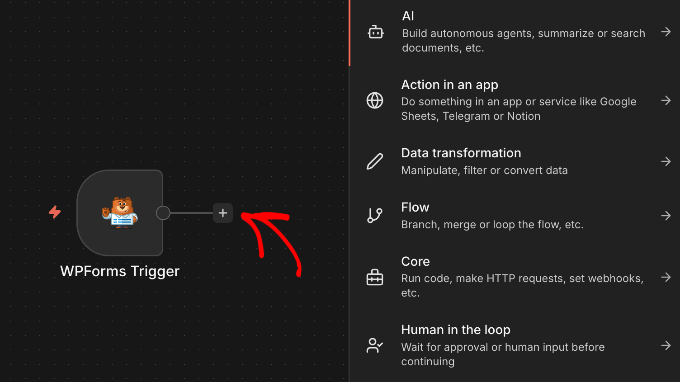
- Google Sheets: Search for ‘Google Sheets‘ to automatically add a new row for every form entry.
- Slack / Microsoft Teams: Search for your team chat app to send a notification message whenever you get a new lead.
- Email Marketing: Search for ‘Mailchimp’, ‘ActiveCampaign‘, or your preferred provider to instantly subscribe new users.
Testing and Finalizing Your Automated Workflow
Before you start relying on your automation, it’s important to test everything to make sure it works correctly. I always test my workflows before going live because it saves headaches later. In your n8n workflow editor, click the ‘Execute workflow’ button near the bottom of the screen. Important: You must click this button before you submit the form on your WordPress site. This puts n8n into “listening” mode so it can capture your test submission.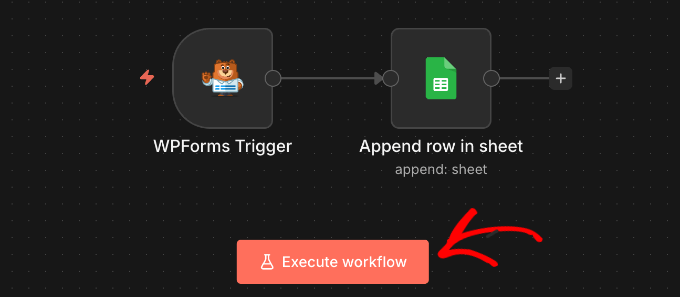
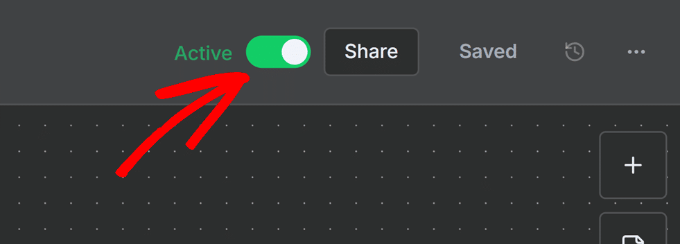
- Make sure your workflow is active (the toggle in the top-right corner should be on).
- Verify that the webhook URL in WPForms matches exactly what’s shown in n8n.
- Confirm that your field mappings are set up correctly in WPForms.
Frequently Asked Questions About Automating Forms With n8n
Automating forms with n8n can improve your productivity and the flow of data across your applications. Here are some frequently asked questions that people also search for when looking for information on this topic. 1. Can I stop WPForms from saving entries to my site? Yes, you can prevent WPForms from storing form entries in your WordPress database when using the n8n addon. To do this, navigate to Settings » General within the WPForms form builder, then locate the Advanced section and enable the option labeled ‘Disable storing entry information in WordPress’ to prevent entries from being saved to your site’s database. 2. What happens if the WPForms node is removed from my n8n workflow? If the WPForms node is deleted or removed from your n8n workflow, your forms will no longer trigger the workflow as designed. To fix this, you’ll need to add a new WPForms Trigger node to your workflow, copy its new Production URL, and update the Webhook URL in your WPForms form builder to re-establish the connection. 3. Can I use n8n for free with WPForms? While n8n offers a free self-hosted option, using the n8n addon with WPForms requires a WPForms Pro license or higher. This ensures you have access to all the premium features needed for the powerful automation offered by n8n. 4. What kind of tasks can I automate using n8n with WPForms? n8n lets you automate a wide range of tasks with WPForms. Common examples include sending follow-up emails after form submissions, triggering custom notifications to user devices, updating records in your CRM, and handling payment confirmations to streamline various business processes.Additional Resources for WordPress Forms and Automation
I hope this article helped you learn how to automate your WordPress forms with n8n. You might like to see these additional resources to expand your knowledge about WPForms and WordPress automation:- How I Created a WordPress Contact Form That People Actually Use – This guide walks you through creating a contact form with WPForms, a fundamental step before setting up any automation.
- How to Use WPForms to Collect and Manage User Submissions – Learn how to use WPForms to collect data from users efficiently.
- How to Send Confirmation Emails After WordPress Form Submission – Explore how to set up notifications in WPForms.
- I Tested the Best AI Automation Tools for WordPress (My Honest Reviews) – Discover various AI automation tools for WordPress to learn how n8n stacks up against other popular options.
- How to Add n8n Like Automation in WordPress (Easier & Cheaper) – Learn alternative methods for adding n8n-like automation in WordPress.















Leave a Reply